


1. Log in to your cPanel account.
2. In the Databases section, click on MySQL Databases.

3. Under Current Databases, you can see a list of all your databases. Locate the database you want to remove and click on Delete.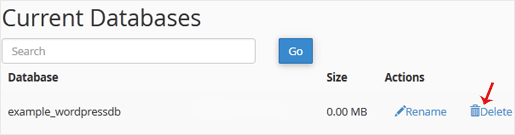
4. Click on Delete Database.
1. Log in to your cPanel account.
2. In the Databases section, click on MySQL Databases.
3. Under Current Databases, you can see a list of all your databases. Locate the database you want to remove and click on Delete.
4. Click on Delete Database.
1. Log in to your cPanel account.2. In the Databases section, click on MySQL Databases. 3. In the...
1. Log in to your cPanel account. 2. In the Databases section, click on MySQL Databases. 3....
1. Log in to your cPanel account. 2. In the Databases section, click on MySQL Databases. 3....
1. Log in to your cPanel account.2. In the Databases section, click on phpMyAdmin.3. From the...
1. Log in to your cPanel account.2. In the Databases section, click on phpMyAdmin. 3. From the...
Are you sure you want to permanently delete this sensitive data? This action cannot be undone, and the information will no longer be accessible.
Adjust the display. Saved in this browser.
The voice of your browser may send the text to the browser vendor.
Colour correction for page content so that similar colours are easier to tell apart.
